Help Center
Adding Accounts & Wallets to Otto
Complete guide to setting up platform accounts and blockchain wallets
Overview
Our system is organized into three hierarchical levels: Client, Entity, and Account. Each level maintains a UUID (Universally Unique Identifier) within Otto.
Many users often want to find an account based on the Account ID. You can find the Account ID of any transaction or balance on the reports.
To go directly to that account in Otto, simply copy the Account ID and plug it in to the below URL:
https://app.ottodigital.io/accounts/Account_ID
e.g. https://app.ottodigital.io/accounts/a4c79b5a-2515-4c6a-906c-5d499da8d13b
This hierarchy structure ensures clear segmentation and accurate tracking of all blockchain wallets and exchange accounts between clients and entities. Accounts reside within Entities, and Entities reside within Clients.
- Client: Represents the client (e.g., Otto Capital Management LLC)
- Entity: Represents the entity/fund under the client (e.g., Otto Bitcoin Fund)
- Account: Represents blockchain wallets or exchange accounts linked to the entity/fund
Platform/Exchange Accounts
For any centralized crypto venue, you will want to use a “Platform” integration and provide API credentials to connect to the account. Once you are on an Entity Page, you can add new accounts by following these steps:
Steps to Add a Platform Account:
- Select Add Account
- Choose PLATFORMS then
- Choose the Exchange/Platform (i.e. Binance)
- (then click Next Steps)
- Provide Account Information:
- Name the Account if desired: Assign a clear and descriptive name to the credential (e.g., “ABC Main Coinbase”)
- Enter the API Key/Credentials: Input the exact key. Ensure there are no leading or trailing spaces, as this will cause errors. The API key will need to be provided by the client or generated by the user on the respective platform. There is an “Otto Integration Guide” PDF that explains the process of obtaining an API key, IP addresses to whitelist, and what kind of credentials are needed (i.e. Key, Secret, Passphrase; credentials needed vary by platform)
- Select Sync Date:
- The sync date must go back to the day of the first transaction. For example, if BTC was initially deposited on January 1, 2023, select 1/1/2023 as the sync date
- Submit the Account: Once the information is entered and verified, submit the account to initiate syncing
Tips for Adding an Exchange/Platform Account:
- Ensure Credential Accuracy: Double-check the credentials/key for spaces or typos before saving. Also ensure you have input the necessary credentials and did not leave out a secret key or passphrase (check “Otto integration guide” PDF)
- Confirm the correct IP Addresses to be whitelisted: Whitelisting IP addresses is not required, but it does provide extra security to ensure only Otto's IP addresses use the API key
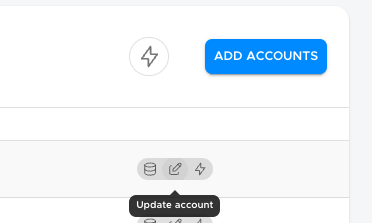
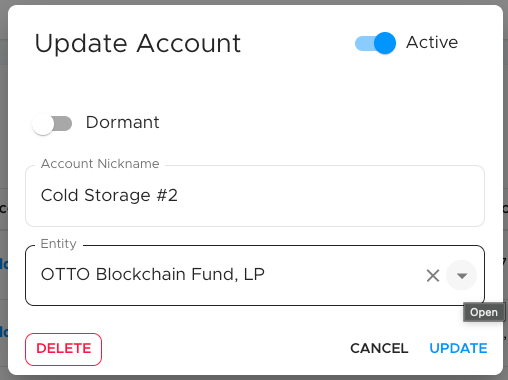
- Multi-fund integrations: Bitgo, Fireblocks, Fordefi, and Anchorage integrations will often have one API key that will provide accounts for multiple funds. Make sure you verify all the accounts in that credential to ensure each account is mapped to the correct entity. You can always “re-map” an account by:
- Select the pen and paper icon (Update Account)
- Select the correct entity from the dropdown to assign the account to and press update
Adding a Blockchain Wallet Account to Otto
“Wallet” account integrations in Otto are for any self-custody wallet. The credential for a wallet is the blockchain address. Once you are within the Fund Level, you can add new blockchain wallet account by following these steps:
Steps to Add a Wallet Account:
- Select Add Account
- Choose WALLETS then
- Choose the BLOCKCHAIN (i.e. Ethereum)
- (then click Next Steps)
- Provide Account Information:
- Name the Account: Assign a clear and descriptive name to the wallet (e.g., “Metamask #1”)
- Enter the Blockchain Address: Input the exact wallet address. Ensure there are no leading or trailing spaces, as this will cause errors
- Select Sync Date:
- The sync date must go back to the day of the first transaction. For example, if BTC was initially deposited on January 1, 2023, select 1/1/2023 as the sync date
- Submit the Account: Once the information is entered and verified, submit the account to initiate syncing
Tips for Adding Blockchain Wallets:
- Ensure Address Accuracy: Double-check the wallet address for spaces or typos before saving
- Select the Correct Blockchain: For EVM-compatible chains with 0x at the beginning of the address (e.g., Ethereum, Arbitrum, Optimism, etc), remember that wallet addresses are identical across these blockchains but are tracked independently within Otto. Adding an EVM wallet address to the Ethereum blockchain will not capture activity within Arbitrum. If an address operates on multiple EVM chains, confirm which EVM blockchains are being used with the address and add each blockchain respectively
- Use a Block Explorer for Verification: A block explorer is an online tool that allows you to verify blockchain data. You can use it to:
- Confirm the Wallet Address: Verify that the address provided matches the correct blockchain
- Identify the First Transaction: Check the wallet's transaction history to determine the correct sync date
- Analyze Activity: Review transaction details to ensure all relevant activity is accounted for
Popular block explorers include Etherscan (Ethereum), Arbiscan (Arbitrum), and others specific to each blockchain.
IF YOU SEARCH “XYZ Blockchain Block Explorer” YOU WILL FIND ONE FOR ALL BLOCKCHAINS. I.e. “Solana Block Explorer” and the first result will be Solscan.
Post-Setup Checklist
After adding the account, take the following steps to ensure everything is working correctly:
- Allow Time for Syncing:
- The account should begin pulling data and reconciling within an hour
- Check Sync Status:
- Navigate back to the account details and verify its status
- If the account has not synced, it will display “Never Updated” and may show a Bug icon
- Troubleshooting Errors:
- If the Bug icon appears and/or the account is not syncing, then something is wrong. Further investigate what could be wrong:
- Did you ensure there were no spaces when entering the wallet address/API key? Should be Yes.
- Did you ensure to add the Secret and/or Passphrase in the credential fields if it is required? (check Otto integration guide) Should be Yes
- Did you add the correct blockchain/exchange? Should be Yes.
- Did you sync from the date of the first transaction? Should be Yes.
- If you have answered YES to the above, then navigate to the “Contact Support” tab to submit a ticket to Otto Help Desk
- If the Bug icon appears and/or the account is not syncing, then something is wrong. Further investigate what could be wrong: